

Embedding Nayya
For a seamless user flow, Nayya can be embedded in an iframe directly in your web app.
An embedded iframe or link will provide users with a way to access Nayya directly from your system of record. Nayya can integrate with your organization's Identity provider to create a secure connection for users to access Nayya from your application.
To embed Nayya, you can follow these steps:
1. Configure SSO Connection with Self-Service URL
Using the self-service link provided to you by the Nayya team, create an SSO connection using any OIDC provider. We also support SAML, though it is comparatively less secure.
Note for SAML setup: Be sure to add the following attribute mappings to ensure users are created with the necessary information when they access Nayya:
- name
- nickname
If you’d like a more in-depth understanding of how this works, these docs provide a comprehensive explanation.
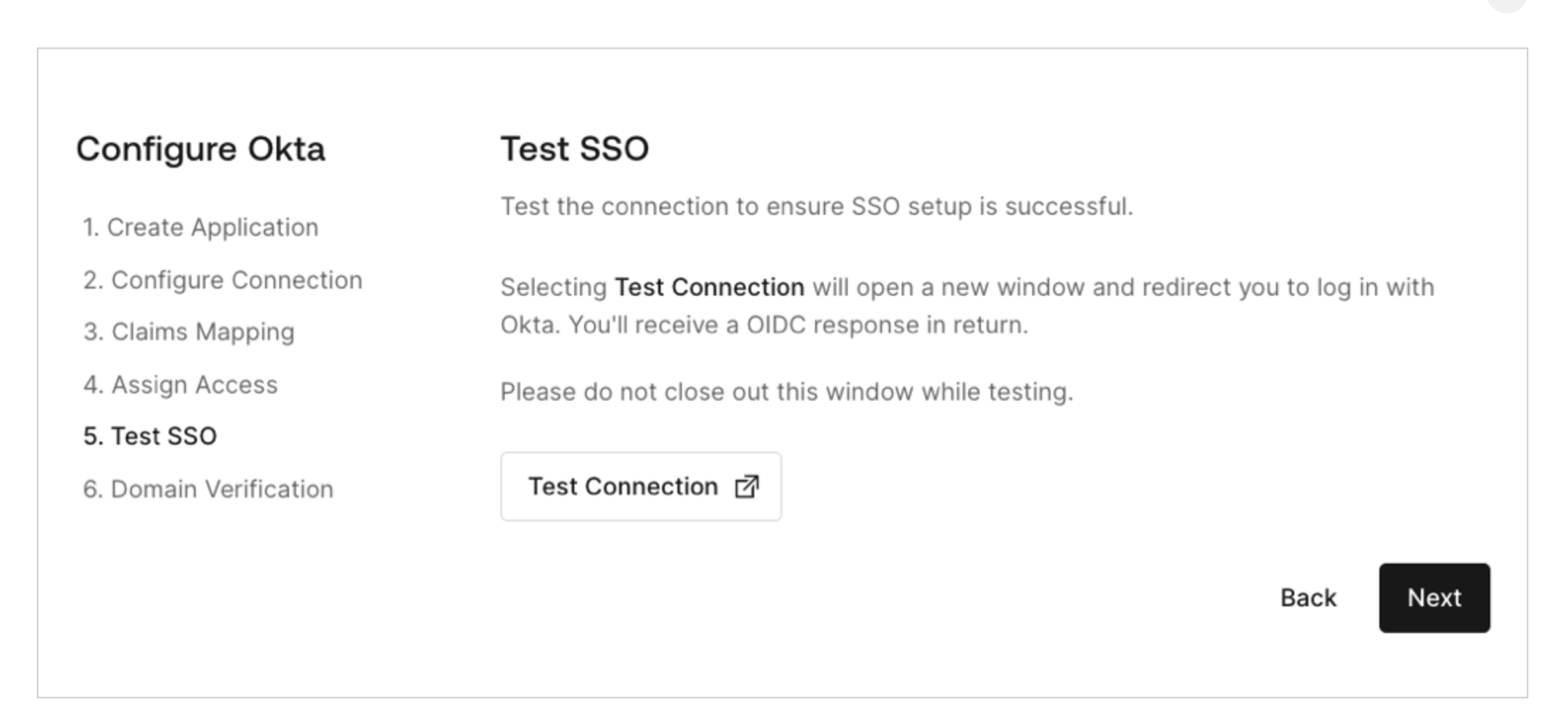
Once you’ve completed the connection setup flow, you will be prompted to test this connection on the last page. It is recommended you use this feature to ensure the connection you’ve created correctly hands off user information from your IDP to the Nayya authentication ecosystem.
2. Locate Transition Point
Next, locate the transition point in your user flow where it makes sense for the user to be directed to Nayya.
Note: For Nayya Choose, this should be before the employee is directed to select any plans that they'd like to participate in. This is also when an employee's snapshot should be sent to Nayya.
3. Add the iframe or link to your application.
At this point, Nayya will provide a URL that you can use as the src value in your iframe or as a direct link. This URL will allow for a silent authentication step in which the user's login information from your IDP is handed off to the Nayya authentication ecosystem. The link includes information about your SSO connection, along with the client ID and URL of the Nayya application you are authenticating into.
Your iframe should look something like this:
<iframe src="https://platform.partners.nayya.com/accounts/partner-auth/authorize?id=2e5cb236-994e-49c5-ac5f-8ffd97e05454&employer=external:12335&connection=my-sso-connection&application=choose&employee=external:employee-id"
/>
Dynamic Values in the URL
The URL provided by the Nayya team has query parameters that need to be updated dynamically to match the user who is authenticating into the app and the app they are attempting to authenticate into. Partners will be responsible for passing these values.
id We will provide you with this value, but this is the ID of your account. This is necessary to validate that subsequent requests are correctly scoped to your account.
employer should be updated to reflect the employer ID of the user authenticating into the application. This value can be set before any JIT requests and MUST be set before the user is redirected.
Note: External IDs are supported. External IDs must be prefixed with external:
application refers to the application that the user should be redirected to, this can be choose, use, leave
connection is the name of the connection configured during the Self-Service SSO configuration.
employee(optional) should be updated to reflect the employeeId that was used when the employee was created. If this field is not provided, we will attempt to link the user based on the email being used to login.
If you’d prefer to link out to Nayya, instead of embedding an iframe, you can use the above url in a link (<a>) tag or <button> in your website.
It really is as simple as that!
Updated about 1 year ago